> ## Documentation Index
> Fetch the complete documentation index at: https://siderolabs-fe86397c-1-11-reference.mintlify.site/llms.txt
> Use this file to discover all available pages before exploring further.
# Set Initial Machine Labels Using Omnictl or Image Factory
Machine labels can be useful for organizing and selecting machines in your Omni environment. For example, you might use them to distinguish between different environments (production, staging, development) or geographical locations (regions, zones). This helps various automation scenarios, such as integrating with your CI pipeline.
Choose label keys and values that are meaningful for your infrastructure organization.
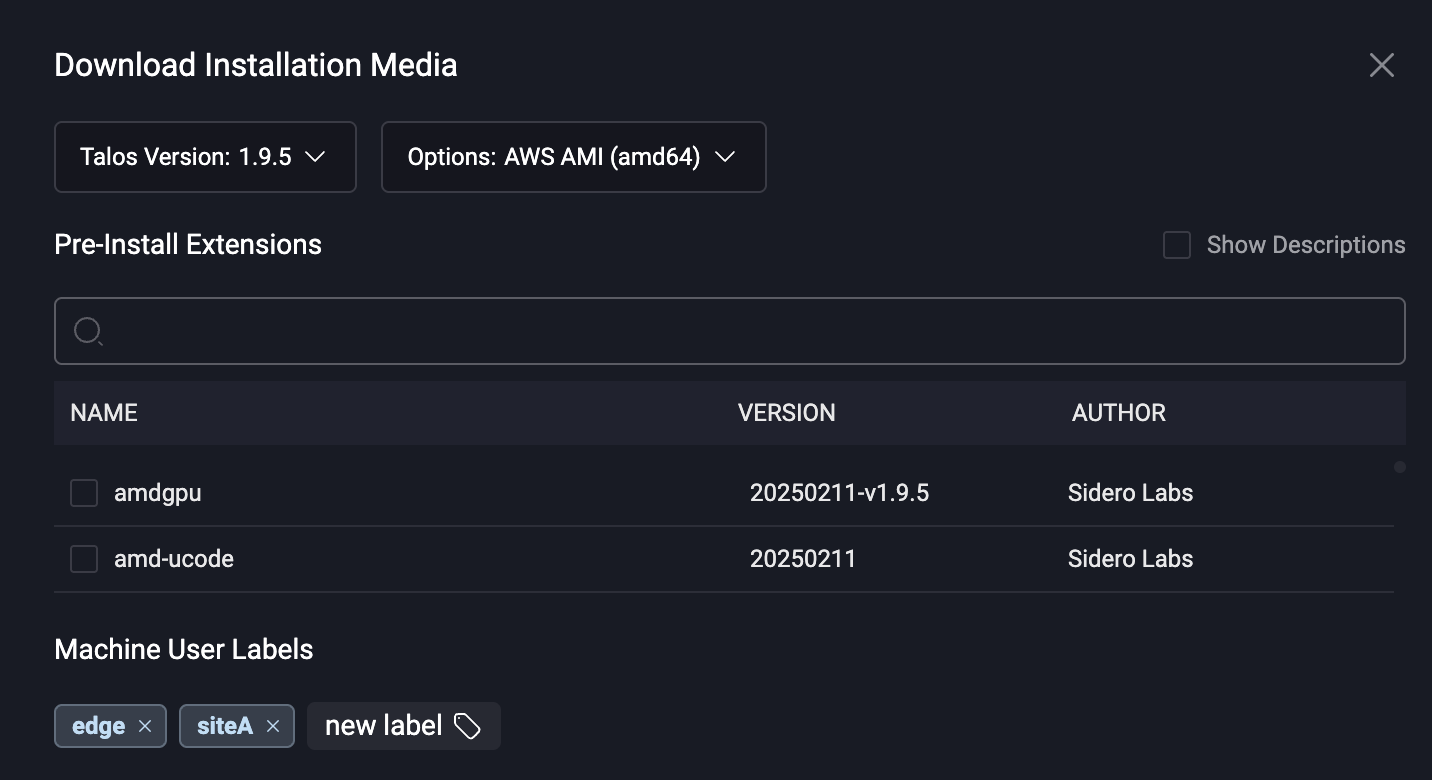
The simplest way to set machine labels is by using the "Download Installation Media" form from the homepage of Omni, which allows you set machine labels in the downloaded media (or the generated PXE endpoint.)
 This guide demonstrates how to set initial machine labels when generating boot media / URL using the `omnictl` CLI tool or using [Image Factory](https://factory.talos.dev) directly.
Both methods allow you to label your machines programmatically.
## Using `omnictl`
When generating Talos installation media or a PXE boot URL using `omnictl`, you can set initial machine labels using the `--initial-labels` flag. This allows you to assign key-value pairs as labels to the machines that boot from that media or the PXE boot URL.
Here's the basic syntax for adding initial labels:
```bash
omnictl download \
--initial-labels =,= \
[--pxe]
```
Let's say you want to download an `amd64` ISO image and set two labels: `environment=production` and `region=us-west`. Here's how you would do that:
```bash
omnictl download iso --arch amd64 \
--initial-labels environment=production,region=us-west
```
Running this command will prepare a schematic under the hood and submit it in a request to the Image Factory. The generated schematic will look like the following:
```yaml
customization:
extraKernelArgs:
- siderolink.api=grpc://YOUR_INSTANCE.siderolink.omni.siderolabs.io?grpc_tunnel=true&jointoken=YOUR_JOIN_TOKEN
- talos.events.sink=[fdae:41e4:649b:9303::1]:8090
- talos.logging.kernel=tcp://[fdae:41e4:649b:9303::1]:8092
meta:
- key: 12
value: |
machineLabels:
environment: production
region: us-west
```
The schematic will also get a unique ID, such as `d2f4229b6157ba7e1dba8c3b4de42263e4baa35111e960b6a18841332d0f2035`.
Here, you can see that the custom image contains the extra Kernel arguments for Talos to connect to your Omni instance on boot using [Siderolink](https://www.talos.dev/v1.7/talos-guides/network/siderolink/). It also contains the machine labels you have specified in a nested yaml in the meta section with key `12`. Here, the key `12` is a Talos META key reserved for Omni for the initial machine labels.
These initial labels work not only for ISOs but for most installation media and for PXE boot URL. For example, to get a PXE boot URL for a Raspberry Pi board, you can run
`omnictl download rpi_generic --initial-labels environment=production,region=us-west --pxe`.
This command will print the PXE boot URL and exit.
## Using Image Factory Directly
Instead of using your Omni instance to generate labeled boot media or PXE URLs, you can use the image factory directly.
To do this, you need to craft an HTTP POST request with the schematic YAML in its body.
First, you need to find the Kernel arguments for your Omni instance.
You can do this by either:
* clicking "Copy Kernel Parameters" on your Omni overview page, which will copy them to your clipboard
* or by running `omnictl get connectionparams -oyaml` , which will print them under `.spec.args` field.
Note that this is a one-time operation - these kernel arguments will stay the same for all the machines you boot from the generated schematic ID.
After retreiving the Kernel arguments, split them by white spaces, and put them into your request body. Your CURL command should look like the following:
```bash
curl -X POST https://factory.talos.dev/schematics \
-H "Content-Type: application/yaml" \
-d '
customization:
extraKernelArgs:
- siderolink.api=grpc://YOUR_INSTANCE.siderolink.omni.siderolabs.io?grpc_tunnel=true&jointoken=YOUR_JOIN_TOKEN
- talos.events.sink=[fdae:41e4:649b:9303::1]:8090
- talos.logging.kernel=tcp://[fdae:41e4:649b:9303::1]:8092
meta:
- key: 12
value: |
machineLabels:
environment: production
region: us-west
'
```
This command will produce output similar to:
```json
{"id":"d2f4229b6157ba7e1dba8c3b4de42263e4baa35111e960b6a18841332d0f2035"}
```
Note that the printed schematic ID is the same as the one we got when we used `omnictl`.
Then you can use this ID in your PXE boot URL or download an installation media, for example:
```bash
curl -O https://factory.talos.dev/image/d2f4229b6157ba7e1dba8c3b4de42263e4baa35111e960b6a18841332d0f2035/v1.7.6/metal-amd64.iso
```
For more options, see the [Image Factory](https://github.com/siderolabs/image-factory/blob/main/README.md) reference.
Although Image Factory has a [web UI](https://factory.talos.dev), it is currently not possible to specify META values on the UI. Therefore, the initial machine labels cannot be specified on the UI at the moment.
The version of the Image Factory UI built into Omni **does** support specifying initial machine labels.
## Verifying Labels
After a machine boots from the labeled media/PXE URL and registers with Omni, you can verify the labels using the Omni web interface or the `omnictl` CLI tool.
To check labels using `omnictl`, you can use either of these commands (replace `` with the actual machine ID):
```bash
omnictl get machinelabels -oyaml
```
or
```bash
omnictl get machinestatus -oyaml
```
These commands will display information about the labels on the machine.
This guide demonstrates how to set initial machine labels when generating boot media / URL using the `omnictl` CLI tool or using [Image Factory](https://factory.talos.dev) directly.
Both methods allow you to label your machines programmatically.
## Using `omnictl`
When generating Talos installation media or a PXE boot URL using `omnictl`, you can set initial machine labels using the `--initial-labels` flag. This allows you to assign key-value pairs as labels to the machines that boot from that media or the PXE boot URL.
Here's the basic syntax for adding initial labels:
```bash
omnictl download \
--initial-labels =,= \
[--pxe]
```
Let's say you want to download an `amd64` ISO image and set two labels: `environment=production` and `region=us-west`. Here's how you would do that:
```bash
omnictl download iso --arch amd64 \
--initial-labels environment=production,region=us-west
```
Running this command will prepare a schematic under the hood and submit it in a request to the Image Factory. The generated schematic will look like the following:
```yaml
customization:
extraKernelArgs:
- siderolink.api=grpc://YOUR_INSTANCE.siderolink.omni.siderolabs.io?grpc_tunnel=true&jointoken=YOUR_JOIN_TOKEN
- talos.events.sink=[fdae:41e4:649b:9303::1]:8090
- talos.logging.kernel=tcp://[fdae:41e4:649b:9303::1]:8092
meta:
- key: 12
value: |
machineLabels:
environment: production
region: us-west
```
The schematic will also get a unique ID, such as `d2f4229b6157ba7e1dba8c3b4de42263e4baa35111e960b6a18841332d0f2035`.
Here, you can see that the custom image contains the extra Kernel arguments for Talos to connect to your Omni instance on boot using [Siderolink](https://www.talos.dev/v1.7/talos-guides/network/siderolink/). It also contains the machine labels you have specified in a nested yaml in the meta section with key `12`. Here, the key `12` is a Talos META key reserved for Omni for the initial machine labels.
These initial labels work not only for ISOs but for most installation media and for PXE boot URL. For example, to get a PXE boot URL for a Raspberry Pi board, you can run
`omnictl download rpi_generic --initial-labels environment=production,region=us-west --pxe`.
This command will print the PXE boot URL and exit.
## Using Image Factory Directly
Instead of using your Omni instance to generate labeled boot media or PXE URLs, you can use the image factory directly.
To do this, you need to craft an HTTP POST request with the schematic YAML in its body.
First, you need to find the Kernel arguments for your Omni instance.
You can do this by either:
* clicking "Copy Kernel Parameters" on your Omni overview page, which will copy them to your clipboard
* or by running `omnictl get connectionparams -oyaml` , which will print them under `.spec.args` field.
Note that this is a one-time operation - these kernel arguments will stay the same for all the machines you boot from the generated schematic ID.
After retreiving the Kernel arguments, split them by white spaces, and put them into your request body. Your CURL command should look like the following:
```bash
curl -X POST https://factory.talos.dev/schematics \
-H "Content-Type: application/yaml" \
-d '
customization:
extraKernelArgs:
- siderolink.api=grpc://YOUR_INSTANCE.siderolink.omni.siderolabs.io?grpc_tunnel=true&jointoken=YOUR_JOIN_TOKEN
- talos.events.sink=[fdae:41e4:649b:9303::1]:8090
- talos.logging.kernel=tcp://[fdae:41e4:649b:9303::1]:8092
meta:
- key: 12
value: |
machineLabels:
environment: production
region: us-west
'
```
This command will produce output similar to:
```json
{"id":"d2f4229b6157ba7e1dba8c3b4de42263e4baa35111e960b6a18841332d0f2035"}
```
Note that the printed schematic ID is the same as the one we got when we used `omnictl`.
Then you can use this ID in your PXE boot URL or download an installation media, for example:
```bash
curl -O https://factory.talos.dev/image/d2f4229b6157ba7e1dba8c3b4de42263e4baa35111e960b6a18841332d0f2035/v1.7.6/metal-amd64.iso
```
For more options, see the [Image Factory](https://github.com/siderolabs/image-factory/blob/main/README.md) reference.
Although Image Factory has a [web UI](https://factory.talos.dev), it is currently not possible to specify META values on the UI. Therefore, the initial machine labels cannot be specified on the UI at the moment.
The version of the Image Factory UI built into Omni **does** support specifying initial machine labels.
## Verifying Labels
After a machine boots from the labeled media/PXE URL and registers with Omni, you can verify the labels using the Omni web interface or the `omnictl` CLI tool.
To check labels using `omnictl`, you can use either of these commands (replace `` with the actual machine ID):
```bash
omnictl get machinelabels -oyaml
```
or
```bash
omnictl get machinestatus -oyaml
```
These commands will display information about the labels on the machine.