> ## Documentation Index
> Fetch the complete documentation index at: https://siderolabs-fe86397c-1-11-reference.mintlify.site/llms.txt
> Use this file to discover all available pages before exploring further.
# Wireguard Network
> A guide on how to set up Wireguard network using Kernel module.
## Configuring Wireguard Network
### Quick Start
The quickest way to try out Wireguard is to use `talosctl cluster create` command:
```bash
talosctl cluster create --wireguard-cidr 10.1.0.0/24
```
It will automatically generate Wireguard network configuration for each node with the following network topology:
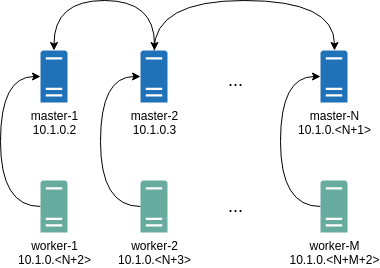 Where all controlplane nodes will be used as Wireguard servers which listen on port 51111.
All controlplanes and workers will connect to all controlplanes.
It also sets `PersistentKeepalive` to 5 seconds to establish controlplanes to workers connection.
After the cluster is deployed it should be possible to verify Wireguard network connectivity.
It is possible to deploy a container with `hostNetwork` enabled, then do `kubectl exec /bin/bash` and either do:
```bash
ping 10.1.0.2
```
Or install `wireguard-tools` package and run:
```bash
wg show
```
Wireguard show should output something like this:
```bash
interface: wg0
public key: OMhgEvNIaEN7zeCLijRh4c+0Hwh3erjknzdyvVlrkGM=
private key: (hidden)
listening port: 47946
peer: 1EsxUygZo8/URWs18tqB5FW2cLVlaTA+lUisKIf8nh4=
endpoint: 10.5.0.2:51111
allowed ips: 10.1.0.0/24
latest handshake: 1 minute, 55 seconds ago
transfer: 3.17 KiB received, 3.55 KiB sent
persistent keepalive: every 5 seconds
```
It is also possible to use generated configuration as a reference by pulling generated config files using:
```bash
talosctl get mc v1alpha1 -o jsonpath='{.spec}' -n 10.5.0.2 > controlplane.yaml
talosctl get mc v1alpha1 -o jsonpath='{.spec}' -n 10.5.0.3 > worker.yaml
```
### Manual Configuration
All Wireguard configuration can be done by changing Talos machine config files.
As an example we will use this official Wireguard [quick start tutorial](https://www.wireguard.com/quickstart/).
### Key Generation
This part is exactly the same:
```bash
wg genkey | tee privatekey | wg pubkey > publickey
```
### Setting up Device
Inline comments show relations between configs and `wg` quickstart tutorial commands:
```yaml
...
network:
interfaces:
...
# ip link add dev wg0 type wireguard
- interface: wg0
mtu: 1500
# ip address add dev wg0 192.168.2.1/24
addresses:
- 192.168.2.1/24
# wg set wg0 listen-port 51820 private-key /path/to/private-key peer ABCDEF... allowed-ips 192.168.88.0/24 endpoint 209.202.254.14:8172
wireguard:
privateKey:
listenPort: 51820
peers:
allowedIPs:
- 192.168.88.0/24
endpoint: 209.202.254.14:8172
publicKey: ABCDEF...
...
```
When `networkd` gets this configuration it will create the device, configure it and will bring it up (equivalent to `ip link set up dev wg0`).
All supported config parameters are described in the [Machine Config Reference](../reference/configuration/v1alpha1/config#Config.machine.network.interfaces..wireguard).
Where all controlplane nodes will be used as Wireguard servers which listen on port 51111.
All controlplanes and workers will connect to all controlplanes.
It also sets `PersistentKeepalive` to 5 seconds to establish controlplanes to workers connection.
After the cluster is deployed it should be possible to verify Wireguard network connectivity.
It is possible to deploy a container with `hostNetwork` enabled, then do `kubectl exec /bin/bash` and either do:
```bash
ping 10.1.0.2
```
Or install `wireguard-tools` package and run:
```bash
wg show
```
Wireguard show should output something like this:
```bash
interface: wg0
public key: OMhgEvNIaEN7zeCLijRh4c+0Hwh3erjknzdyvVlrkGM=
private key: (hidden)
listening port: 47946
peer: 1EsxUygZo8/URWs18tqB5FW2cLVlaTA+lUisKIf8nh4=
endpoint: 10.5.0.2:51111
allowed ips: 10.1.0.0/24
latest handshake: 1 minute, 55 seconds ago
transfer: 3.17 KiB received, 3.55 KiB sent
persistent keepalive: every 5 seconds
```
It is also possible to use generated configuration as a reference by pulling generated config files using:
```bash
talosctl get mc v1alpha1 -o jsonpath='{.spec}' -n 10.5.0.2 > controlplane.yaml
talosctl get mc v1alpha1 -o jsonpath='{.spec}' -n 10.5.0.3 > worker.yaml
```
### Manual Configuration
All Wireguard configuration can be done by changing Talos machine config files.
As an example we will use this official Wireguard [quick start tutorial](https://www.wireguard.com/quickstart/).
### Key Generation
This part is exactly the same:
```bash
wg genkey | tee privatekey | wg pubkey > publickey
```
### Setting up Device
Inline comments show relations between configs and `wg` quickstart tutorial commands:
```yaml
...
network:
interfaces:
...
# ip link add dev wg0 type wireguard
- interface: wg0
mtu: 1500
# ip address add dev wg0 192.168.2.1/24
addresses:
- 192.168.2.1/24
# wg set wg0 listen-port 51820 private-key /path/to/private-key peer ABCDEF... allowed-ips 192.168.88.0/24 endpoint 209.202.254.14:8172
wireguard:
privateKey:
listenPort: 51820
peers:
allowedIPs:
- 192.168.88.0/24
endpoint: 209.202.254.14:8172
publicKey: ABCDEF...
...
```
When `networkd` gets this configuration it will create the device, configure it and will bring it up (equivalent to `ip link set up dev wg0`).
All supported config parameters are described in the [Machine Config Reference](../reference/configuration/v1alpha1/config#Config.machine.network.interfaces..wireguard).